Extracting and Formatting Mailing Lists
In order to mail out thank-you cards, holiday greetings, or other snail-mail notifications, you may wish to extract a piece of your client database. This guide walks you through that process, and provides a helpful tool to format your export in a user-friendly way.
Related Training
Video Walkthrough
Step-By-Step Guide
Modify Your Filter for Export
1) Open the Filter(s) section of your Scarlett Dashboard.
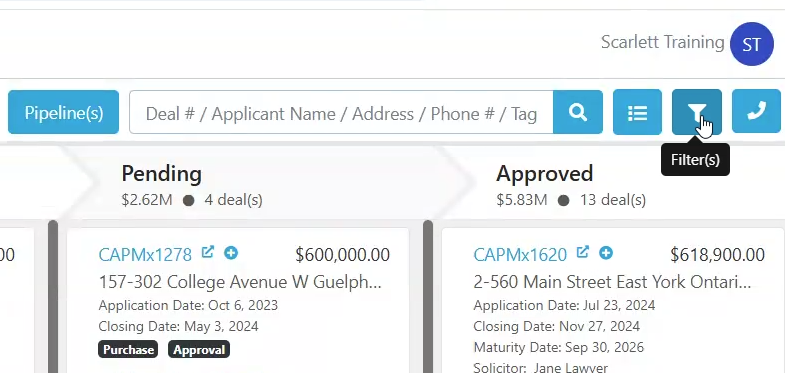
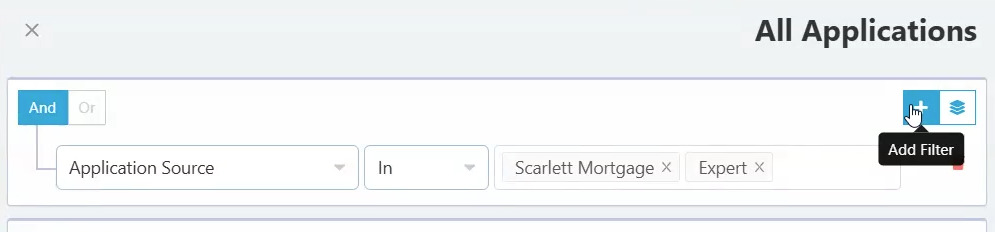
2) Make any adjustments needed to your filter to capture the right segment of your database.
3) Change the display to a list view
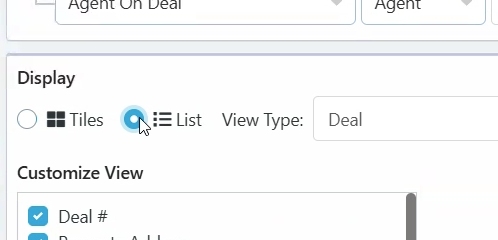
4) Customize the view to display just the Applicant Names and Mailing Address by unchecking the other options
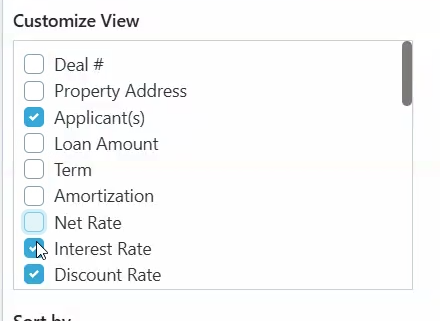
5) Run the filter
Export the Generated List as an Excel file
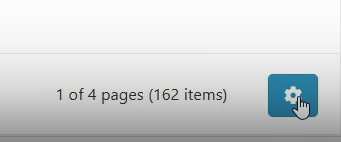
1) Click the gear icon in the bottom right corner of the screen
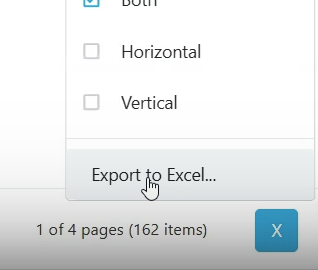
2) Click "Export to Excel"
Use the Address Formatter
1) Download the Address Formatter from the Download Resource section below
2) Copy the client names & addresses from your export and paste them starting in A2 of the Address Formatter.
3) If there is a warning label at the top of your excel document, click "enable" or "allow"
4) Click the "Format Names & Addresses" button
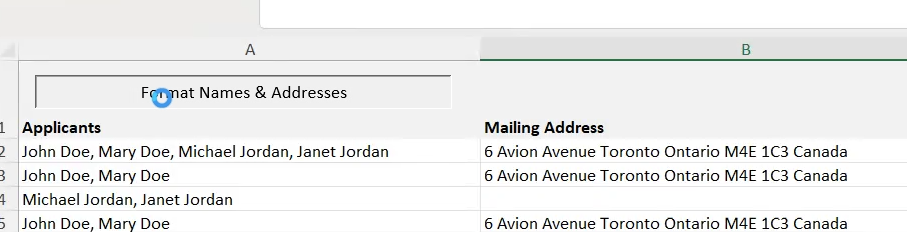
The macro will separate the names and addresses into separate columns, for easier label creation.
Download Resource
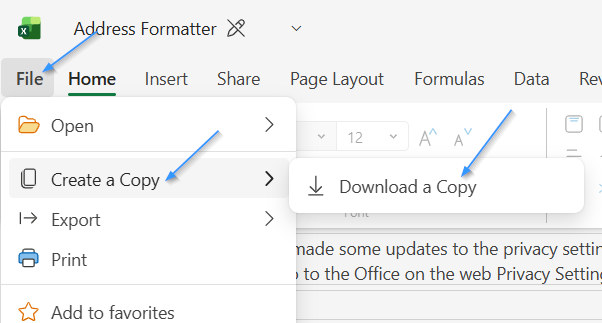
Please download a copy of the formatter, rather than using in the web browser, to protect your client data and ensure a copy is not left for the next agent who clicks the link.