
Setting Up a Multi-Component Refinance
This guide explains how to set up, update, and submit a refinance file that includes multiple mortgage components. It ensures the existing mortgages are cleared correctly, the refinance request is structured properly for the lender, and submissions are handled accurately for one or two mortgage components.
Related Training
Video Walkthrough
Step-by-Step Guide
Before you begin: Confirm how the lender wants to receive the new mortgage components. Depending on the lender and product, you may need to submit the components separately, create separate deals, or submit the entire refinance as a single first mortgage request.
1. Update the Existing Mortgages
When a property being refinanced already has registered mortgages, those mortgages will appear in Scarlett as existing mortgages.
Because the Subject Property is connected to the property information elsewhere in the application, update the existing mortgages before setting up the new refinance request.
1) Navigate to the Properties Owned section of the application.
2) Locate the property being refinanced.
3) Review the existing mortgage components.
For example, the property may currently have:
A first mortgage
A second mortgage
4) For each mortgage being paid out from the refinance proceeds, update the mortgage to indicate that it will be paid out.
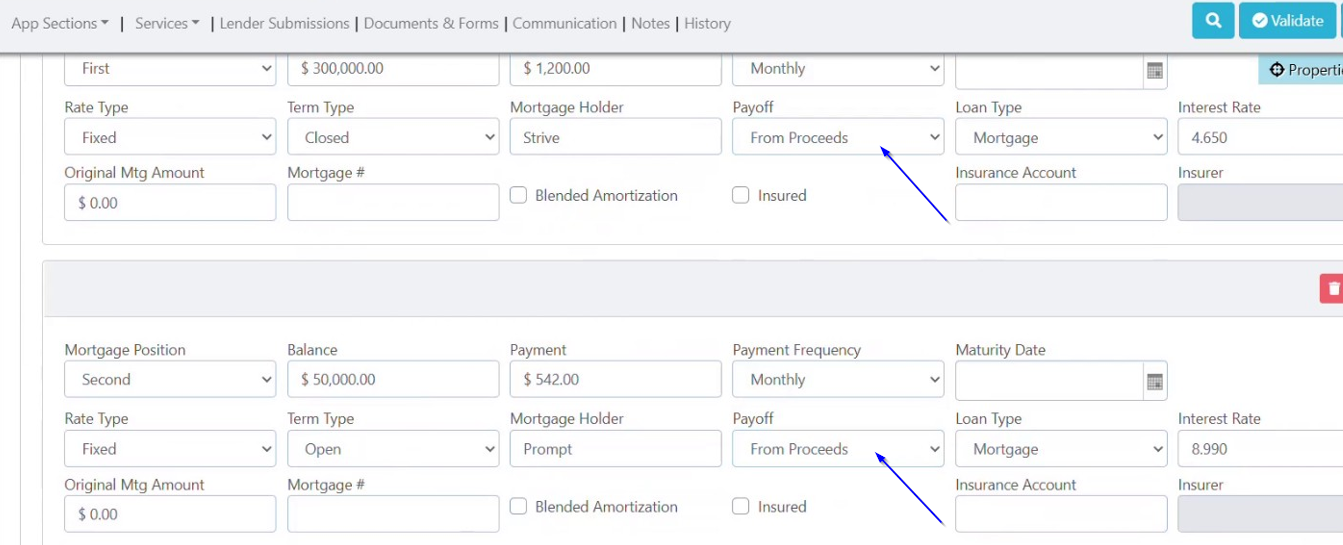
5) Save to update the property information.
Once completed, return to the Subject Property section.
2. Create the New Mortgage Request(s)
In the Subject Property section, enter the mortgage amount being requested.
How you set up the request depends on how the new financing will be structured.
One New First Mortgage
If both existing mortgages are being replaced by a single new first mortgage, enter the full refinance amount as the first mortgage request.
For example:
First Mortgage Requested: $350,000
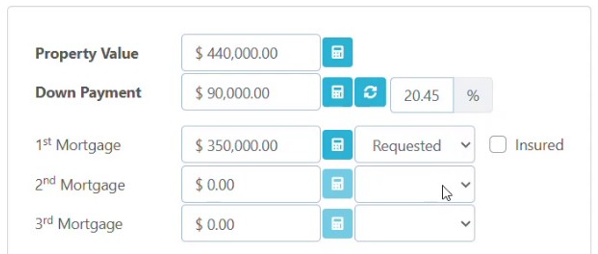
Do not create a second mortgage request.
New First and Second Mortgages
If the refinance will result in a new first mortgage and a new second mortgage, create both requests.
For example:
First Mortgage Requested: $325,000
Second Mortgage Requested: $25,000
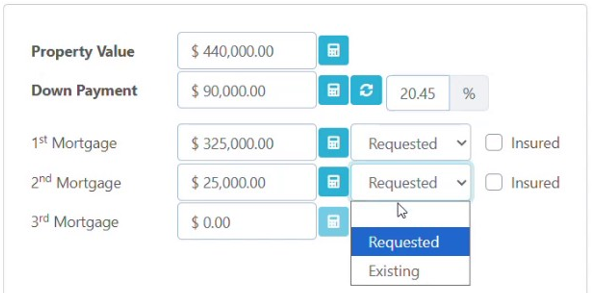
When a mortgage is marked as Requested, Scarlett automatically displays a corresponding Mortgage Request Details section further down the page.
Creating both requests will therefore display:
Mortgage Request Details – First Mortgage
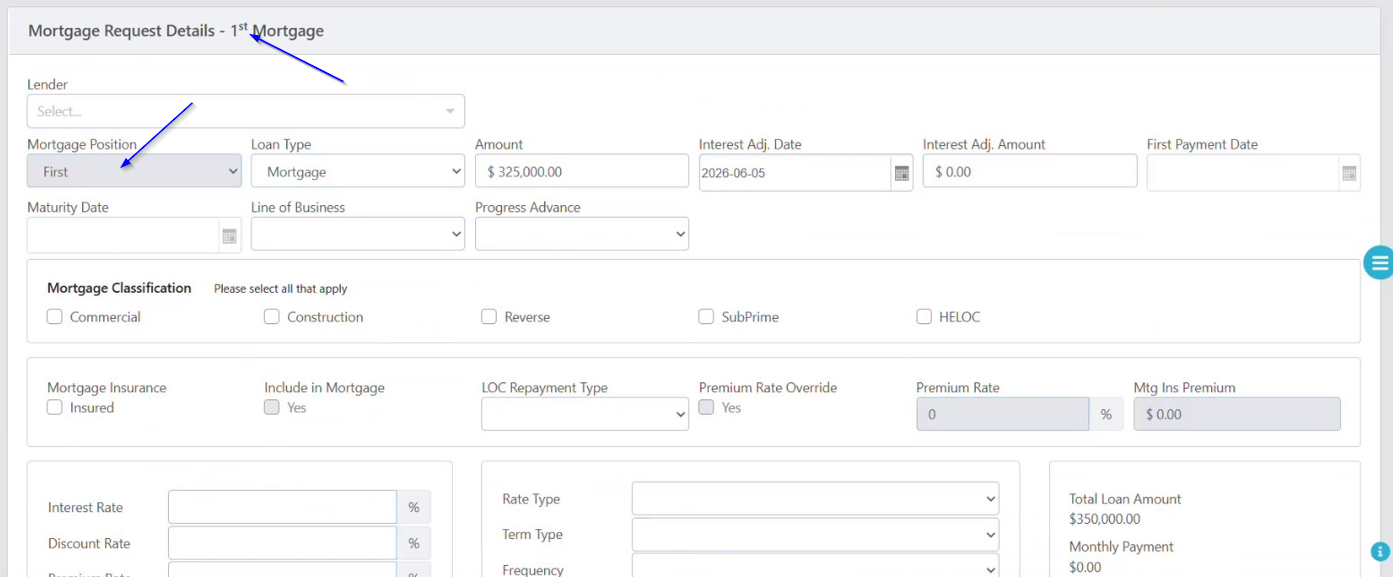
Mortgage Request Details – Second Mortgage
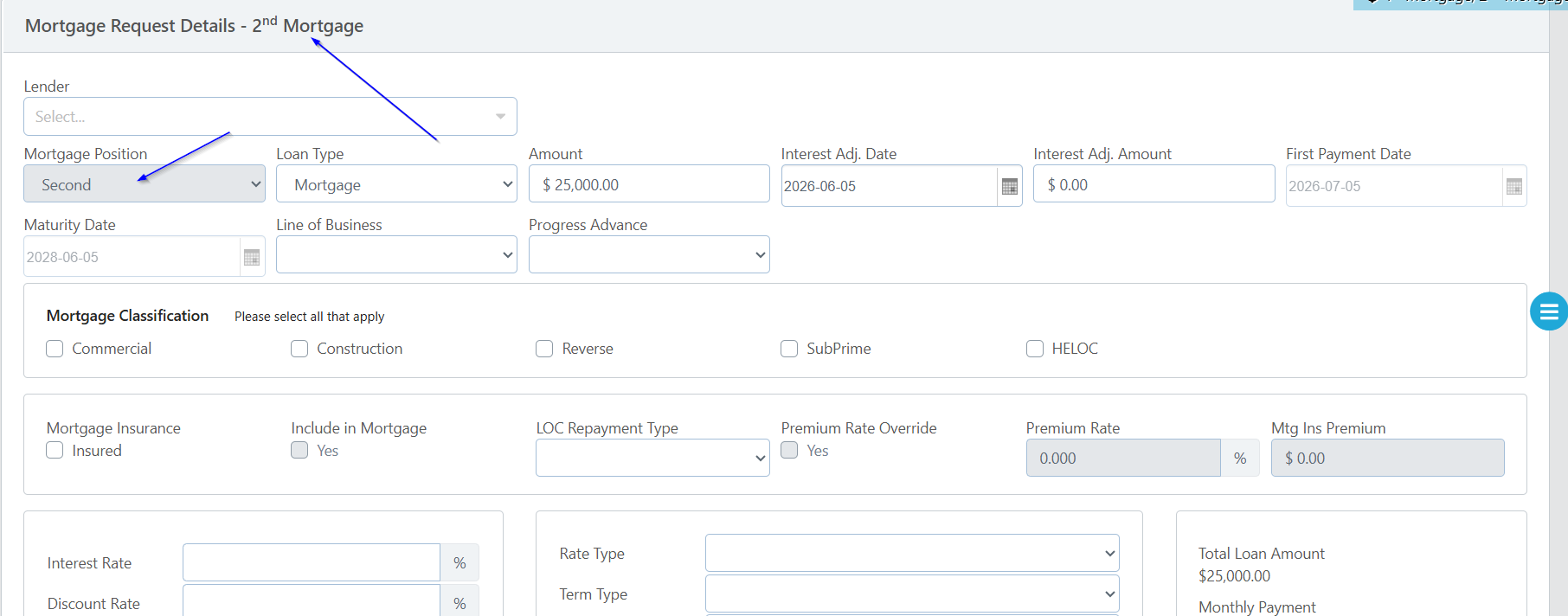
If the second mortgage request is removed, the second mortgage details section will also be removed.
3. Confirm How the Lender Wants the Deal Submitted
Before completing the mortgage details, confirm how the lender accepts multi-component refinance submissions.
Different Lenders for the First and Second
If the first mortgage is going to one lender and the second mortgage is going to another, both requests can be created within the same Scarlett deal.
Each mortgage can then be submitted independently to its respective lender.
Same Lender, Separate First and Second Products
Some lenders offer both first and second mortgage products but require them to be submitted as completely separate deals.
When first and second mortgage requests are submitted from the same Scarlett deal, the submissions use related deal numbers, for example:
CAPMx2531-1CAPMx2531-2
Some lenders may not be able to properly process the related deal numbers.
If the lender requires completely separate deal numbers:
1) Create a copy of the deal.
2) Use one deal for the first mortgage.
3) Use the copied deal for the second mortgage.
4) Submit each deal separately.
Same Lender, Combined Products
Some lender products include both a mortgage and a HELOC component but are registered as one charge.
Examples include: Manulife One, TD FlexLine, Scotia Step
For these products, do not create separate first and second mortgage requests simply because the product contains two components.
Instead:
1) Enter the total financing amount as the First Mortgage Requested amount.
2) Use the Lender Submission Notes to explain how the total amount should be divided between the mortgage and HELOC components.
4. Complete the First Mortgage Request
Under Mortgage Request Details – First Mortgage, complete the mortgage information as you normally would.
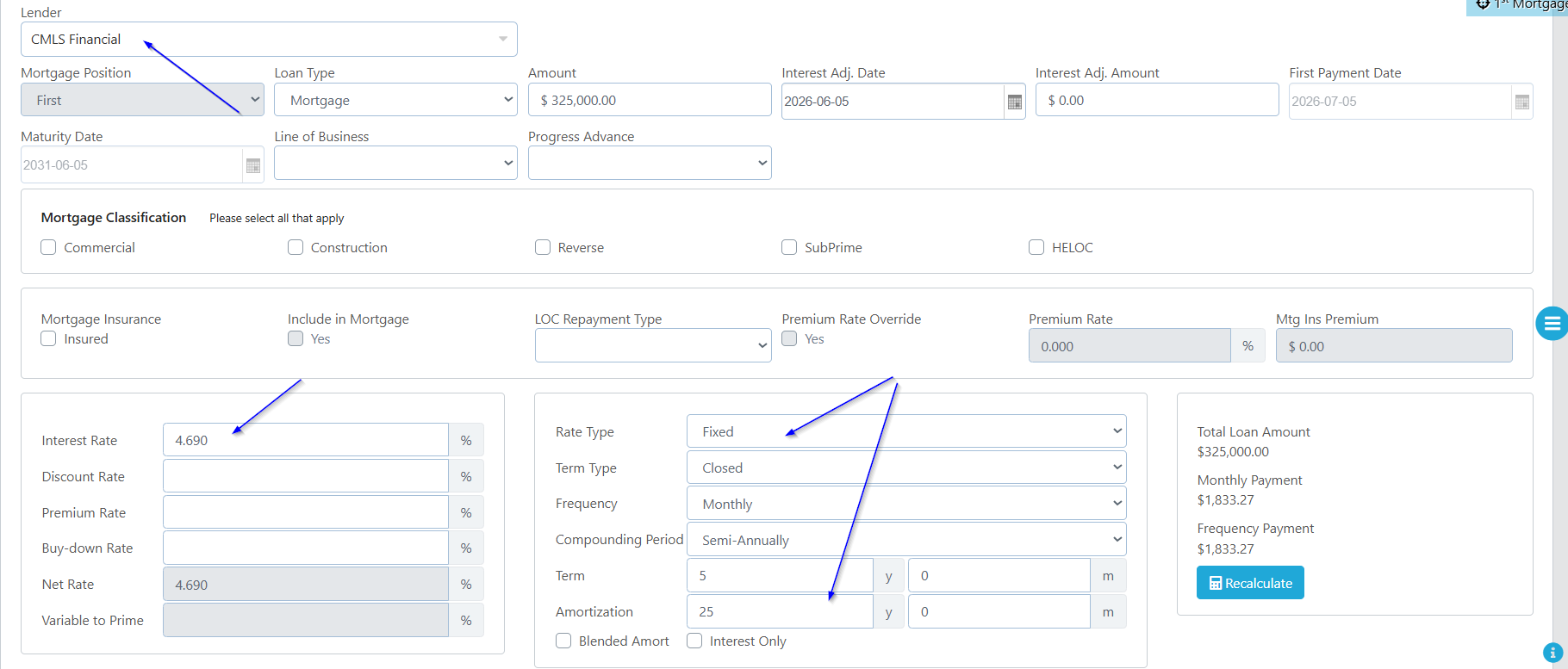
Complete all required information for the first mortgage.
5. Complete the Second Mortgage Request
If a second mortgage is being requested, scroll to Mortgage Request Details – Second Mortgage.
Complete the applicable details for the second mortgage, including the lender and mortgage terms.
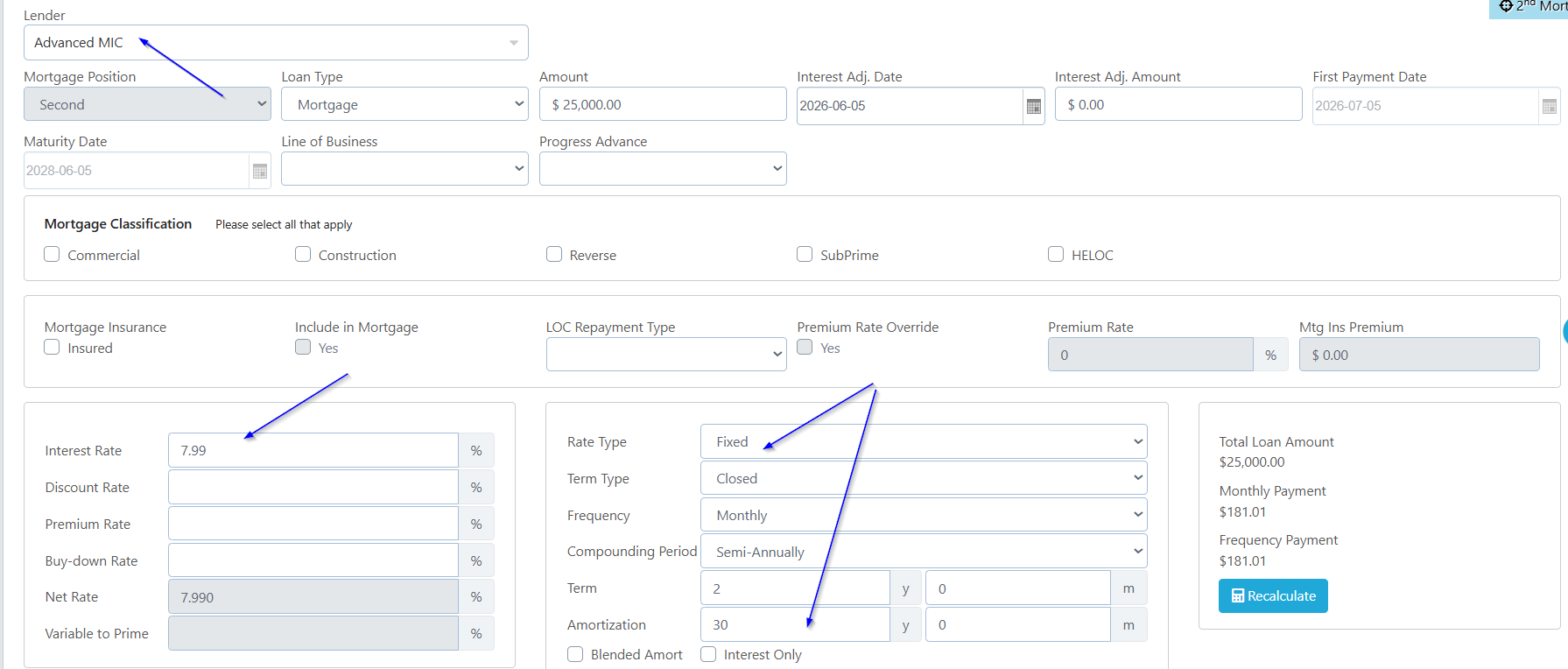
The first and second mortgage requests can have different lenders and different loan details.
6. Validate Your Deal
As you would on any other submission, validate your deal and update your file as needed.
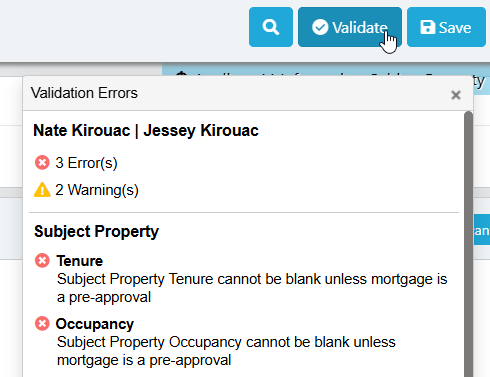
Once your validations are clear, you may proceed to lender submission.
7. Submit the First Mortgage
Once both mortgage requests have been configured:
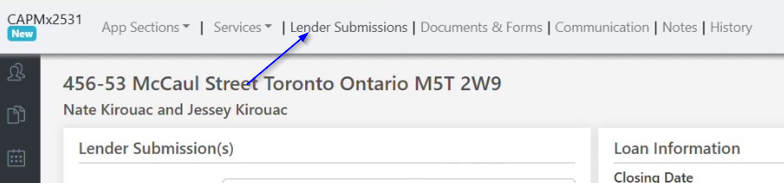
1) Navigate to Lender Submission.
2) Select First Mortgage.
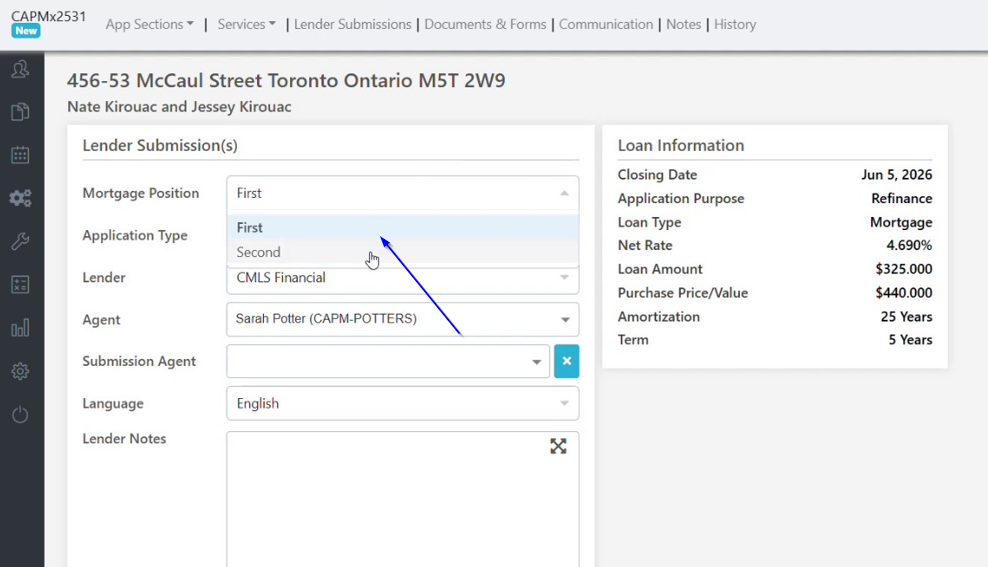
3) Confirm that the correct lender and loan information are displayed.
4) Select the Submission Agent, if applicable.
5) Enter your Lender Submission Notes. Use Generate Note if you would like Scarlett to assist with creating the lender notes.
6) Click Submit.
8. Submit the Second Mortgage
To submit the second component:
1) Select Second Mortgage from the Lender Submission screen.
2) Note that the lender and loan information update to reflect the second mortgage request.
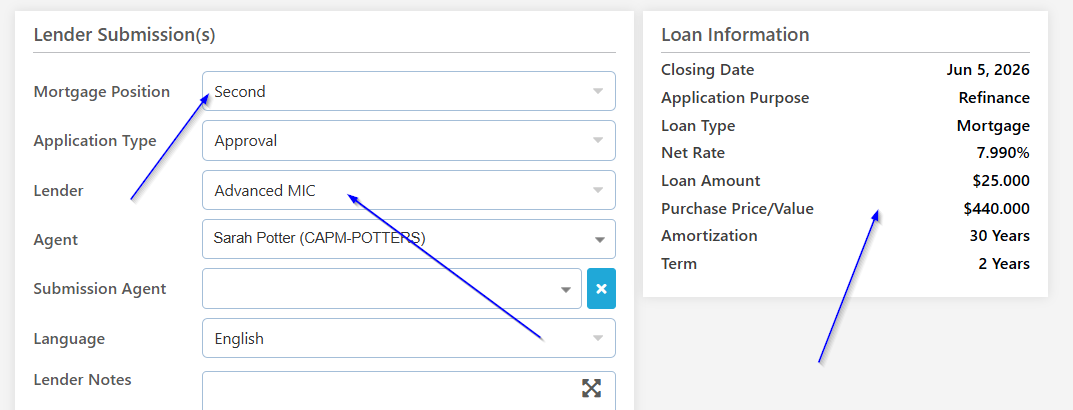
3) Select the Submission Agent, if applicable.
4) Enter the appropriate Lender Submission Notes.
5) Click Submit.
Each mortgage request is submitted independently.
9. Review the Submission History
When a deal contains first and second mortgage submissions, the Submission History separates the two components. You can toggle between them by clicking the 1st Mtg or 2nd Mtg buttons.
You will see:
First Mortgage submission history

Second Mortgage submission history

Lender responses will continue to appear in Scarlett for lenders that return responses electronically.
Because these are separate mortgage requests, you can accept a response for the first mortgage and a response for the second mortgage.
Once the appropriate lender responses have been accepted, you can continue with the deal and generate the required documents.
Choosing the Correct Setup
Use the structure that matches the financing being requested:
Scenario | Scarlett Setup |
|---|---|
Existing first + second being replaced by one new mortgage | One First Mortgage request for the full amount |
New first and second going to different lenders | First and Second Mortgage requests in the same deal |
New first and second going to the same lender | Confirm the lender accepts related deal numbers; otherwise create a copy of the deal and submit separately |
Combined mortgage + HELOC registered as one charge | One First Mortgage request for the total amount; provide the component split in Lender Submission Notes |